AI & Development
Maze Linux is built to run AI workloads locally. Ollama ships preinstalled
and starts on boot; the language toolchains and virtualization stack are not on
the ISO — install what you need with one pacman command (noted per section).
Local AI Stack
Ollama
Ollama is a runtime for running large language models (LLMs) locally on your hardware, with no data leaving your machine. Ollama starts on boot automatically as a systemd service.
Pull a model:
ollama pull llama3
ollama pull mistral
ollama pull codellama
ollama pull phi3
Run a model interactively:
ollama run llama3
List installed models:
ollama list
Remove a model:
ollama rm llama3
Start the API server:
ollama.serviceis already running, so you normally do not runollama serveyourself — it would fail with the port already in use.
The API listens on http://localhost:11434 and exposes two shapes:
| Endpoint | Format |
|---|---|
/api/chat, /api/generate | Ollama's own API |
/v1/chat/completions | OpenAI-compatible (point OpenAI SDKs here) |
Check the service:
systemctl status ollama
Choosing a Model
| Model | Size | Best for |
|---|---|---|
llama3 | ~4.7 GB | General chat and reasoning |
codellama | ~3.8 GB | Code generation and explanation |
mistral | ~4.1 GB | Fast, capable general purpose |
phi3 | ~2.3 GB | Lightweight, fast on limited RAM |
llava | ~4.5 GB | Vision — describe and analyze images |
Smaller models run on 8 GB RAM. Larger models (13B+) benefit from 16 GB+ RAM. GPU acceleration is used automatically if a CUDA or ROCm-compatible GPU is present.
Ollama API
The REST API is compatible with the OpenAI chat completions format:
curl http://localhost:11434/api/chat -d '{
  "model": "llama3",
  "messages": [{"role": "user", "content": "Explain Btrfs snapshots in one paragraph."}]
}'
Maze AI Utilities
Maze AI
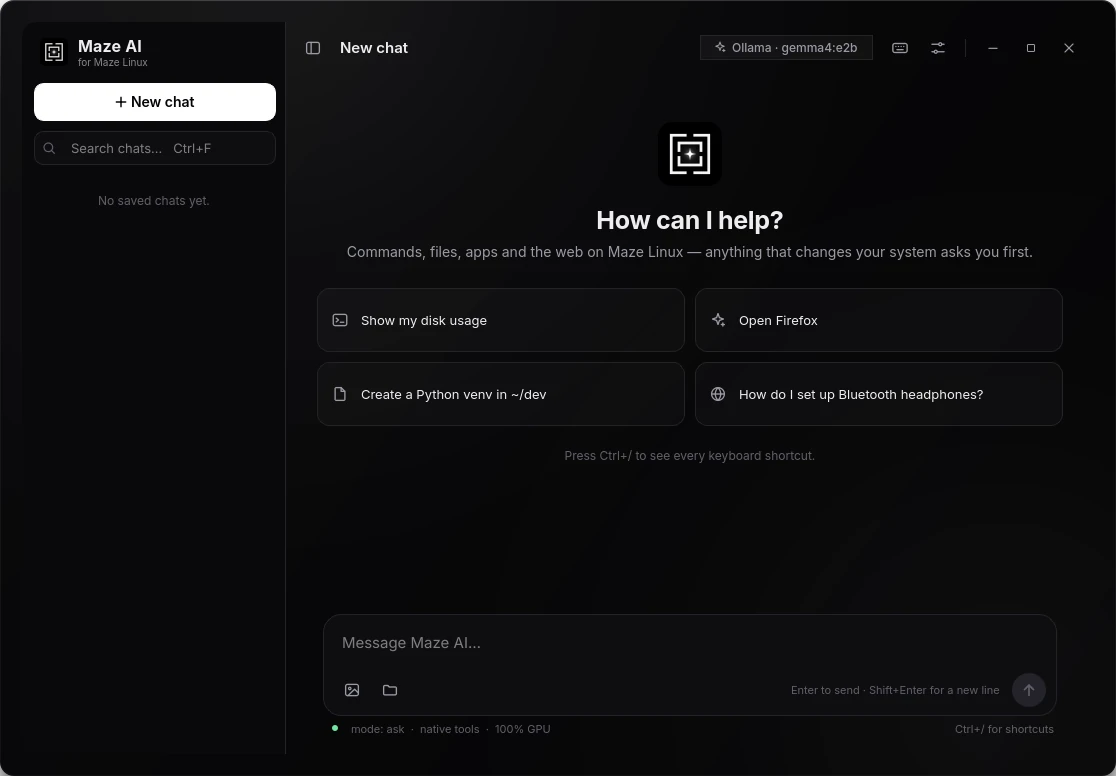
Maze's own desktop AI assistant (PySide6), built on Ollama — installed by
default as part of maze-meta. It is agentic: it can read your clipboard,
files and directories, shell history and screenshots to answer questions and
carry out tasks. Turkish is a first-class language, not a translation.
maze-ai
All inference goes through your local Ollama instance.
linux-chan-ai — not installed by default
A chat assistant with a terminal UI.
Privacy warning — read before installing. Linux Chan has no offline mode. It reads files and screenshots on your behalf, and everything it sees is sent to Google. It is deliberately excluded from the default install. If you want a local, private assistant, use Maze AI above.
linux-chan-ai
sentinai — not installed by default
PassGen / OSINT tooling aimed at authorised penetration testing. It is not a background security monitor, and it has a Gemini cloud path — so it is not private by default. Deliberately excluded from the default install.
sentinai
Upscayl
AI image upscaling. Enlarges and enhances images using local neural network models — no cloud upload. Supports PNG, JPG, and WebP input at 2×, 4×, and 8× scale.
Development Toolchain
paru (AUR Helper)
paru -S <package>          # install from AUR or official repos
paru -Syu                  # update everything including AUR packages
paru -Ss <keyword>         # search
paru -Rns <package>        # remove package and unused dependencies
base-devel
The full Arch build toolchain is preinstalled: gcc, g++, make, cmake, binutils, autoconf, automake, fakeroot, patch, pkg-config, and more.
Python
Python 3 with pip and setuptools preinstalled:
pip install requests numpy pandas   # user install
paru -S python-numpy                 # system-wide from repo
Git
git clone https://github.com/user/repo
git pull
Node.js
Node.js is preinstalled:
node --version
npm install
Rust (rustup)
The Rust toolchain is managed via rustup:
rustup show           # list installed toolchains
cargo new my-project  # start a new project
cargo build --release
Go
The Go toolchain is preinstalled:
go version
go build ./...
Flatpak (Additional Apps)
Flathub is configured. Install sandboxed developer tools:
flatpak install flathub com.visualstudio.code    # VS Code
flatpak install flathub com.jetbrains.PyCharm    # PyCharm
Virtualization
Virtualization (not preinstalled)
Virtualization is not installed by default — this is deliberate, to keep the ISO lean. The whole KVM stack is one command away:
sudo pacman -S qemu-desktop libvirt virt-manager edk2-ovmf
sudo systemctl enable --now libvirtd
sudo usermod -aG libvirt,kvm "$USER"   # log out and back in
If you prefer VMware Workstation, Maze ships a helper that sets it up for you:
maze-install-vmware
Distrobox
Run containers from other distributions while sharing your home directory, display, and audio:
distrobox create --name ubuntu24 --image ubuntu:24.04
distrobox enter ubuntu24
distrobox stop ubuntu24
distrobox rm ubuntu24
GPU Acceleration
Maze ships Vulkan and VA-API drivers for Intel, AMD, and Nvidia:
| GPU vendor | Vulkan package | Video decode |
|---|---|---|
| Intel | vulkan-intel | intel-media-driver |
| AMD | vulkan-radeon | Mesa VA-API |
| Nvidia (open) | vulkan-nouveau | Mesa VA-API |
| Software | vulkan-swrast | Software fallback |
Check Vulkan support:
vulkaninfo | head -30
Nvidia — install the proprietary driver; Ollama picks up CUDA automatically, no environment variable needed:
sudo pacman -S nvidia nvidia-utils
sudo systemctl restart ollama
AMD — install ROCm (6.1+). Older cards fall back to CPU automatically. If
your GPU is not detected, the variable that actually helps is
HSA_OVERRIDE_GFX_VERSION, set on the service, not on a shell command:
sudo systemctl edit ollama
# [Service]
# Environment="HSA_OVERRIDE_GFX_VERSION=11.0.0"
sudo systemctl restart ollama
There is no
OLLAMA_GPUvariable — Ollama detects the backend itself.
Check what it picked:
journalctl -u ollama | grep -i -m5 'gpu\|rocm\|cuda'
Zsh Environment
Zsh with Oh My Zsh is the default shell. It includes:
- The
mazetheme (custom prompt showing user, host, path, and git branch). - Tab completion for
git,pacman,paru,docker, and more. fastfetchruns at shell startup to show system info.
Customize in ~/.zshrc. Add Oh My Zsh plugins:
# Edit ~/.zshrc, find the plugins line:
plugins=(git docker kubectl node)
multilib and Flatpak
The multilib repository is enabled in /etc/pacman.conf, giving access to 32-bit libraries required for Steam, Wine, and game compatibility tools:
sudo pacman -S wine steam