Snapshots & Rollback
Maze takes a btrfs snapshot automatically before and after every pacman
transaction (via snap-pac). You do not need to remember to do it, and the
snapper configuration is created for you.
Right after installing: no snapshots yet
A freshly installed system starts with an empty snapshot list — this is expected:
maze-snapshots-setup.servicecreates the snapper configuration on the first boot.- The installation itself is skipped on purpose (
SNAP_PAC_SKIP=y), so there is no snapshot of the install process. - Your first snapshots appear the next time you install or upgrade a package after that first boot.
Want a known-good starting point right away? Take one by hand:
sudo snapper -c root create -d "fresh install"
Listing snapshots
sudo snapper -c root list
sudo is required — /.snapshots is readable by root only, so without it you
get a "No permissions" error.
The first line, 0 current, is not a snapshot: it is the running system.
That is why commands below compare against 0 ("now").
Graphical equivalent: Btrfs Assistant, in the application menu.
Snapper keeps up to 20 of these snapshots (plus up to 10 marked important) and deletes older ones automatically.
Only pacman transactions create snapshots — snapper's hourly timeline is off by default. Turn it on if you want time-based snapshots as well:
sudo snapper -c root set-config TIMELINE_CREATE=yes
A monthly btrfs scrub of the root filesystem ([email protected]) also
runs in the background to catch silent disk corruption.
What a snapshot covers — and what it does not
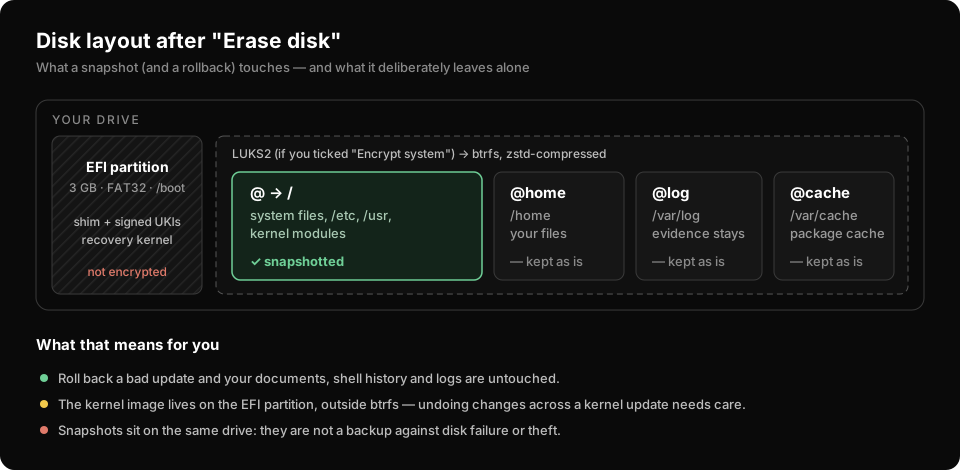
Snapshots are taken of the root subvolume only. Some locations live on separate subvolumes or partitions on purpose, so rolling back never touches them:
| Location | In the snapshot? | Why |
|---|---|---|
/ — system files, /etc, /usr | Yes | This is what an update changes |
/home — your files, shell history, app settings | No | Rolling back the system must not lose your work |
/var/log | No | Logs of what went wrong stay available |
/var/cache | No | Package cache, not worth snapshotting |
| EFI partition — the signed kernel image (UKI) | No | Not on btrfs |
So after a rollback, a package you installed is gone again, but the changes it made inside your home directory (for example your shell history or config files) stay.
Undoing a single change
This is the common case: an update changed something and you want it back the way it was. First see what actually changed between snapshot 42 and now:
sudo snapper -c root status 42..0
Then undo it:
sudo snapper -c root undochange 42..0
Not across a kernel update.
undochangerestores everything in the root subvolume — including the kernel modules in/usr/lib/modules— but the kernel image itself lives on the EFI partition, which is not snapshotted. If the kernel was updated after snapshot 42, you would end up with old modules and a new kernel: no Wi-Fi, possibly no graphics. Check with thestatuscommand above; if/usr/lib/modulesis in the list, use full system rollback instead, which checks for this.
Full system rollback
Returns the entire system to an earlier snapshot:
sudo maze-rollback                  # list snapshots you can return to
sudo maze-rollback 42               # return to snapshot 42
-
You are asked to type the snapshot number again to confirm.
-
The rollback takes effect on the next reboot.
-
Snapshots that could not actually take effect (for example ones taken before rollback support was enabled) are refused rather than silently doing nothing.
-
Before switching, a read-only snapshot of the current state is taken, so nothing is lost — it shows up in
snapper list. -
It warns you if a kernel update happened in between (see above).
-
Changed your mind? Undo the rollback:
sudo maze-rollback --undo
Setup: the installer prepares full rollback automatically. Only systems installed from an older ISO need a one-time step — running it on a current install just reports "Already set up":
sudo maze-enable-rollback           # shows what would change
sudo maze-enable-rollback --apply   # applies it
Known limitation: full system rollback is not yet reliable on every machine and is still being worked on. If you need to recover from a bad update today,
snapper undochange(mind the kernel caveat above) or the recovery kernel are the safer routes.
What snapshots do not protect against
Snapshots live on the same disk as your system. They protect you from a bad update or a mistaken change — not from disk failure, theft, or an encrypted-disk password you have forgotten. Keep real backups on separate media for that.
See also: If the System Won't Boot · Updating