Maze Connect
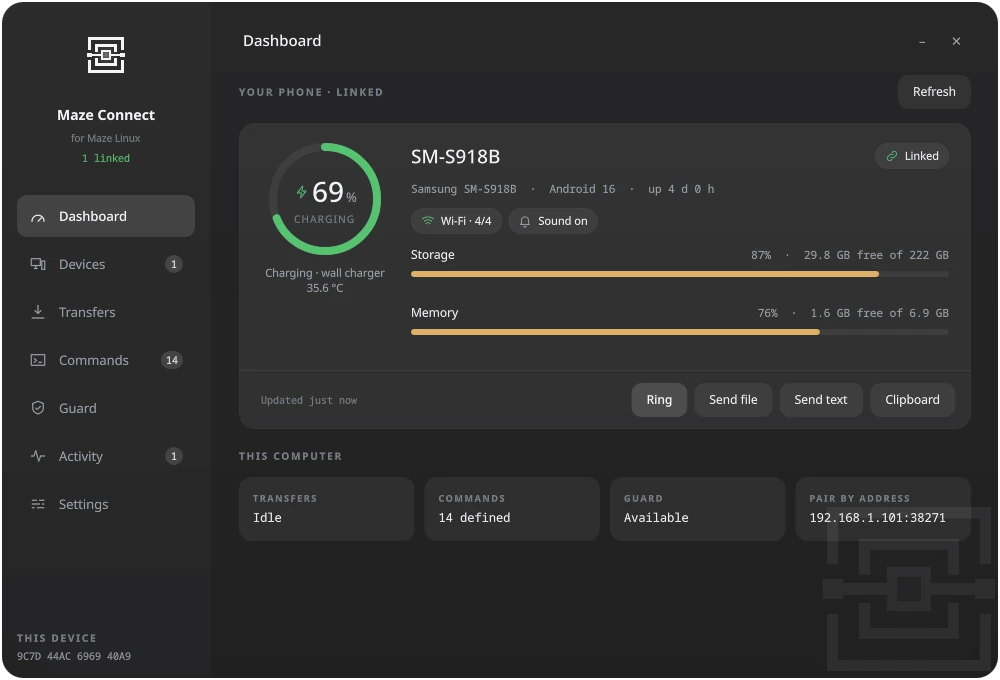
Maze Connect is a pair of companion apps — a Linux desktop daemon (Qt6/QML/C++) and an Android app (Kotlin/Jetpack Compose) — that let your phone remotely monitor and control a Maze Linux desktop over the local network.
Overview
| Component | Platform | Stack |
|---|---|---|
| Maze Connect Desktop | Linux (Maze Linux) | Qt6, QML, C++ |
| Maze Connect Mobile | Android | Kotlin, Jetpack Compose |
Both apps must be installed and paired before use. All communication happens directly between the phone and the desktop on the same network — nothing is routed through a third-party server.
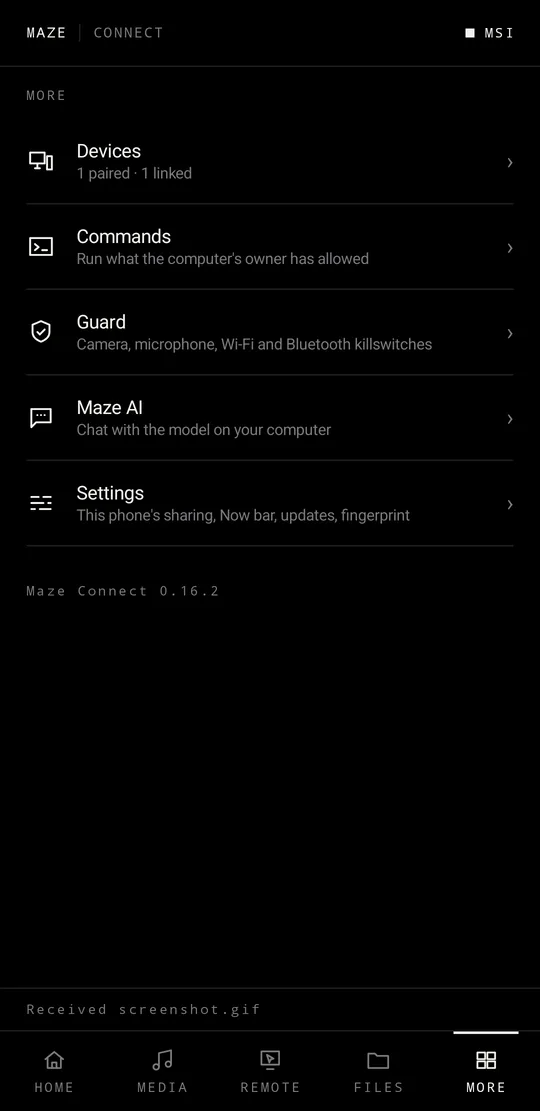
On the phone, the app is organised into five tabs — Home, Media, Remote, Files and More. The More tab holds Devices, Commands, Guard, Maze AI and Settings.
Pairing & Security
Pairing uses mutual TLS 1.3. Each side authenticates the other with a certificate; the connection is confirmed with a verification code shown on both devices, and the desktop's public key is pinned on the phone after the first successful pair — later connections are rejected if the key ever changes.
Pairing steps:
- Open Maze Connect Desktop and select Pair new device.
- Open Maze Connect on your Android phone and choose Add computer.
- Confirm that the verification code shown on both screens matches.
- Accept the pairing request on the desktop.
Once paired, the phone stores the desktop's pinned key and will reconnect automatically whenever both devices are on the same network.
Connection resilience: a heartbeat keeps the session alive, and if the connection drops (network change, desktop sleep, etc.) the phone reconnects automatically in the background — no need to reopen the app or re-pair.
Features
Dashboard
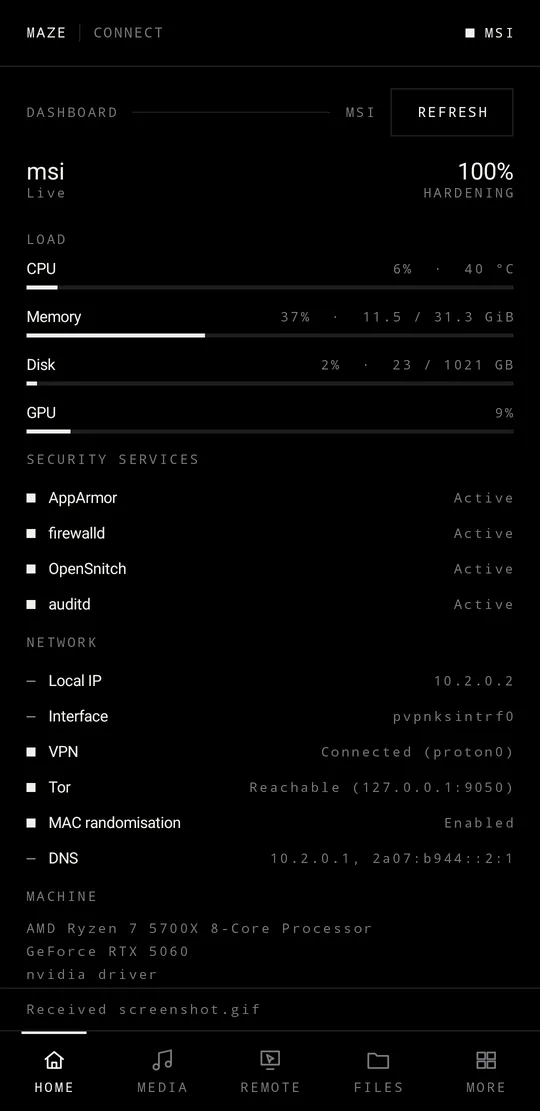
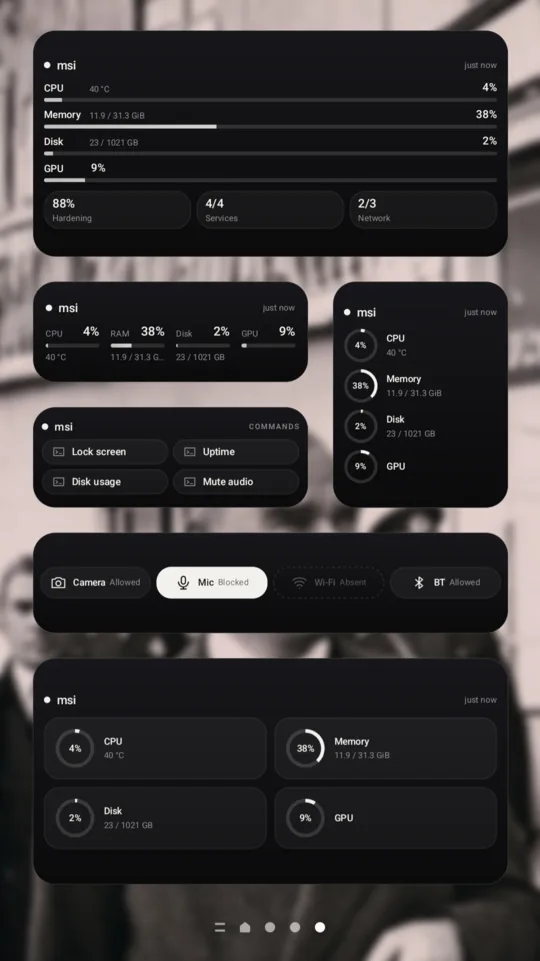
Live system metrics (CPU, RAM, GPU) alongside summary counts for hardening status, running services, and network state.
Media
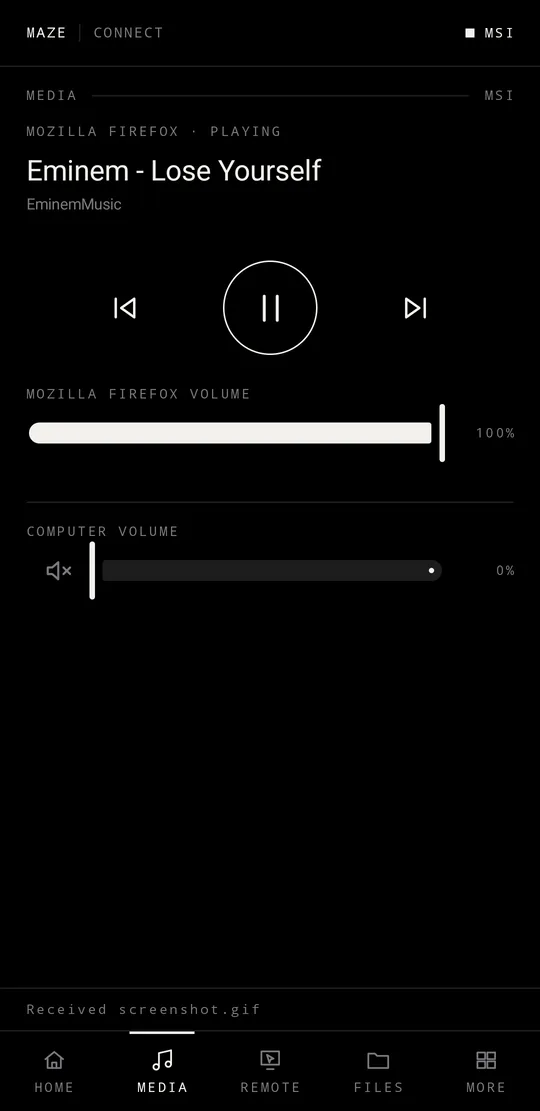
See what is playing on the desktop and control it from the phone: previous / play-pause / next, the player's own volume, and the computer's master volume.
Remote
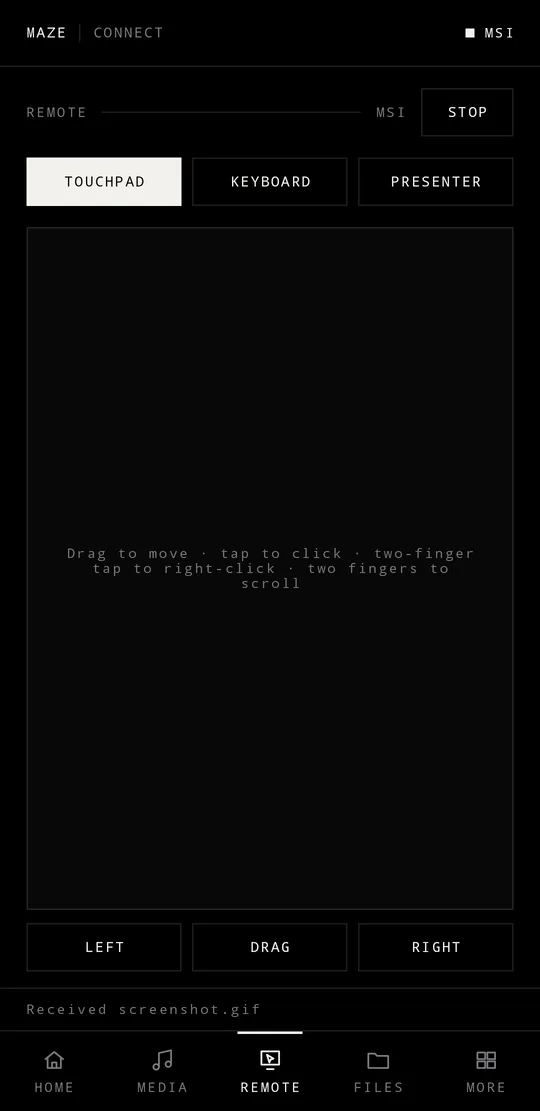
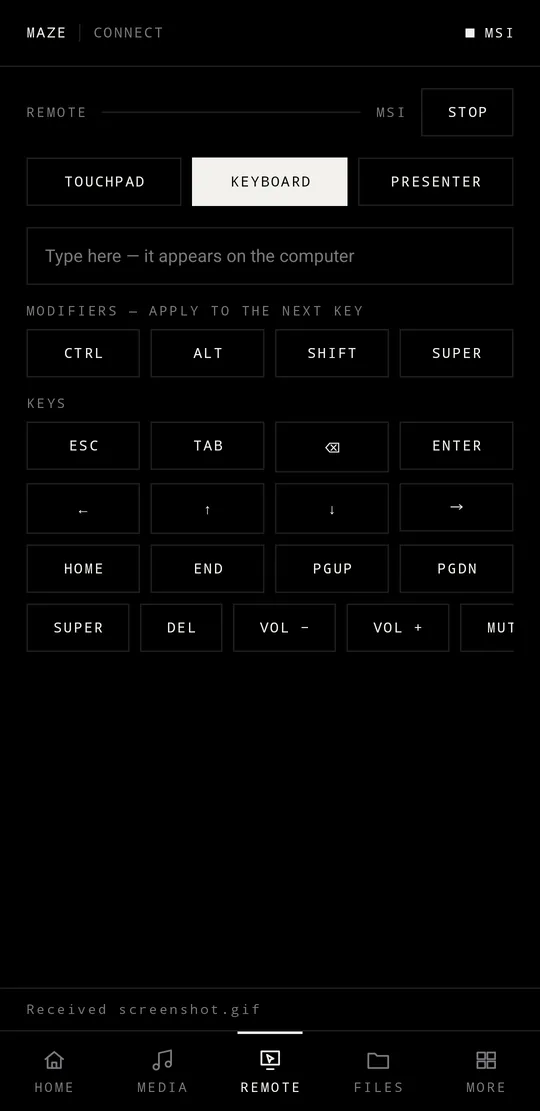
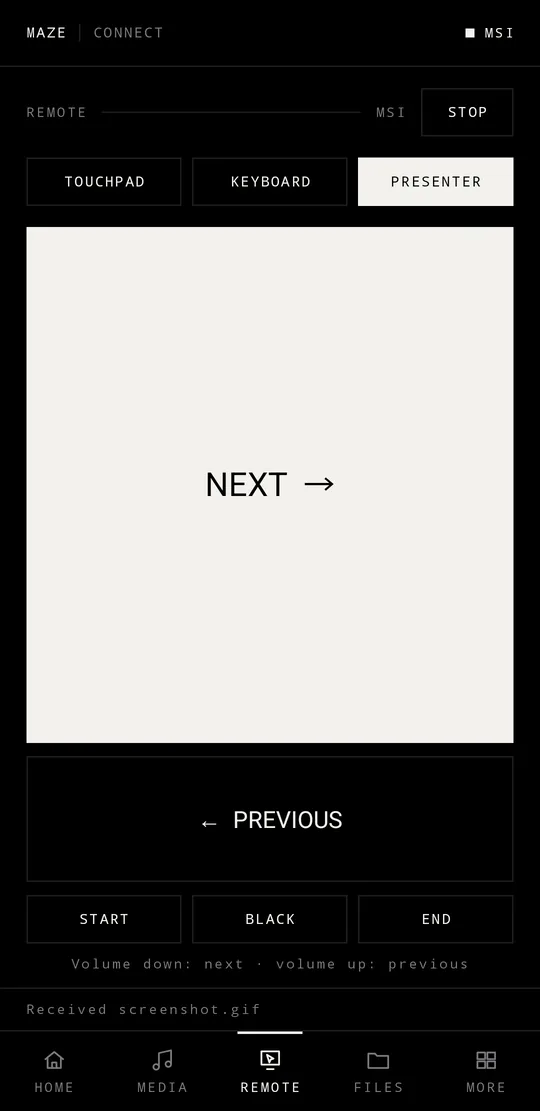
Use the phone as an input device for the desktop, in three modes:
- Touchpad — drag to move, tap to click, two-finger tap to right-click, two fingers to scroll; separate left, drag and right buttons.
- Keyboard — type text straight into the focused window, with modifiers (Ctrl, Alt, Shift, Super) and navigation, editing and volume keys.
- Presenter — large next / previous buttons plus start, black-screen and end; the phone's volume buttons also step through slides.
maze-guard Killswitches
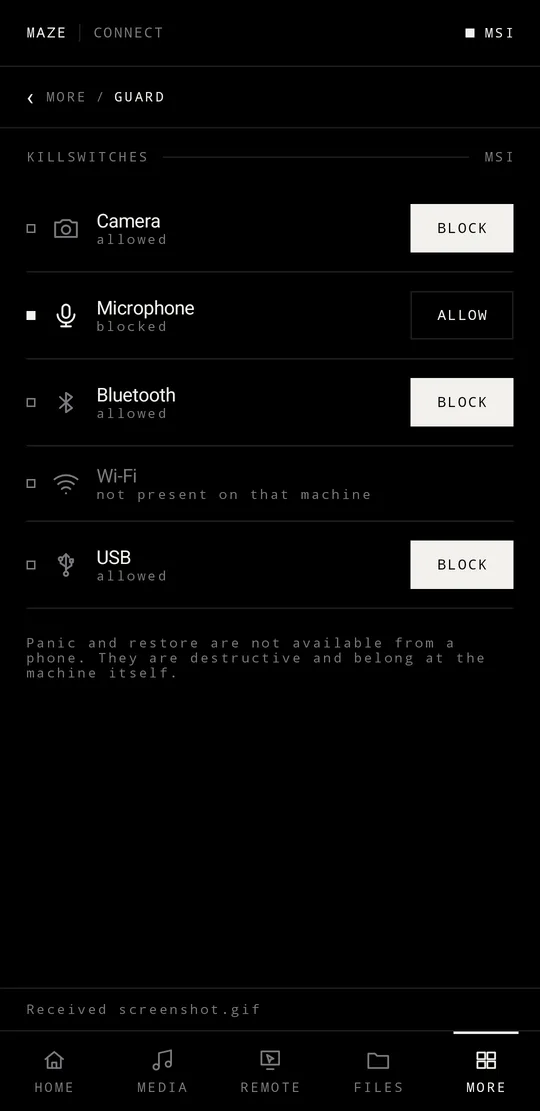
Direct integration with maze-guard: toggle the camera, microphone, Wi-Fi, and Bluetooth killswitches from the phone. Each toggle requires confirmation before it takes effect.
Commands
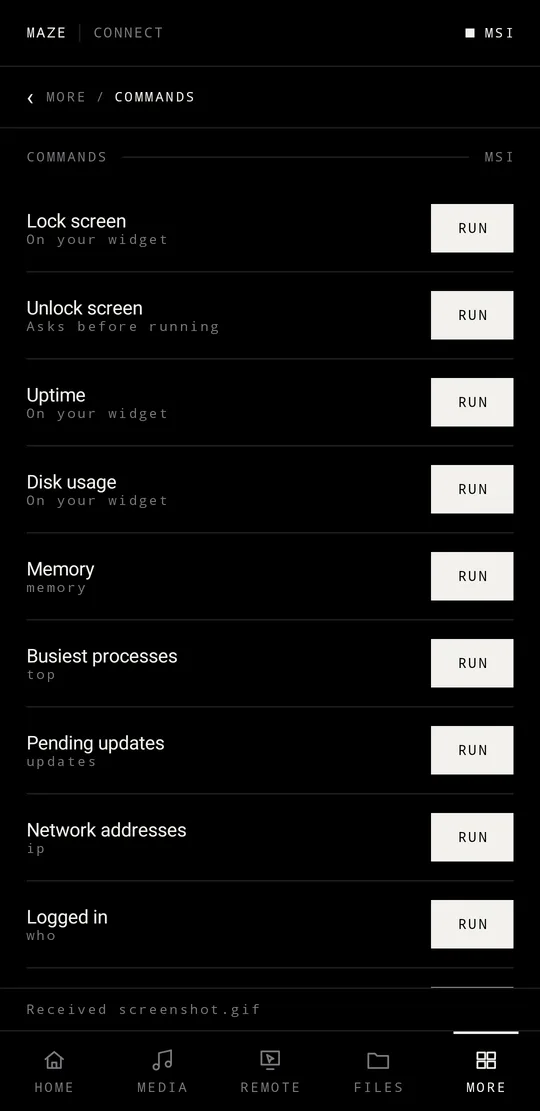
Trigger commands defined on the desktop directly from the phone. Commands themselves can only be added or edited from the desktop side — the phone can only trigger existing ones. Commands marked sensitive require an extra confirmation step on the phone before running.
Maze AI
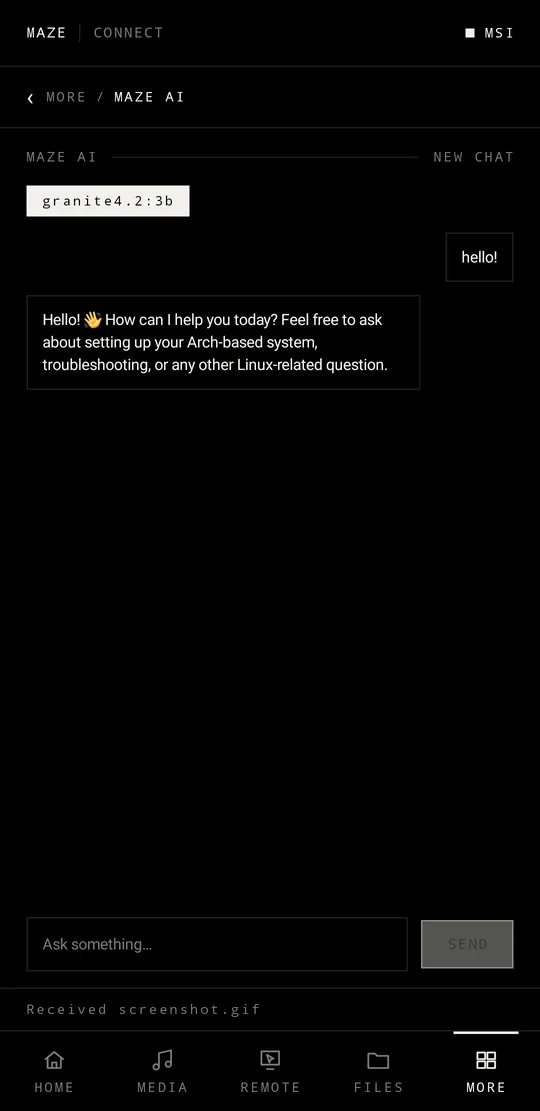
Chat with the local Ollama model running on the desktop, from your phone. Inference stays on the desktop — nothing is sent to a third party.
File Transfer
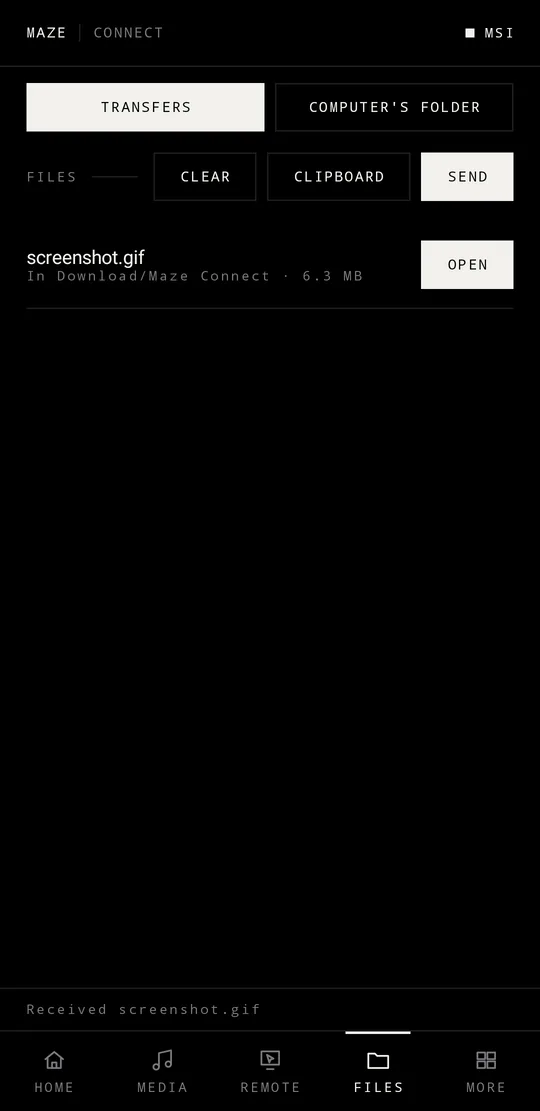
Two-way file transfer between phone and desktop.
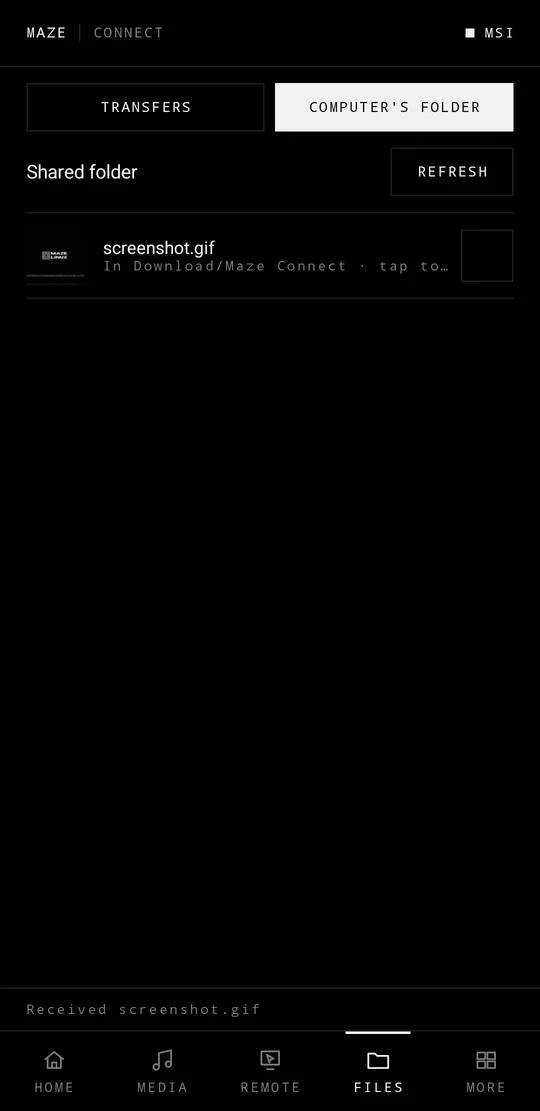
Android Share Menu Integration
Share to your desktop directly from any Android app's native Share menu.
Open on Phone
Send a link or piece of text from the desktop to the phone; it opens via a notification on the phone.
Home Screen Widgets
Three Android home-screen widgets, usable without opening the app:
- Dashboard — available in three sizes.
- Commands
- Controls — the maze-guard killswitches.
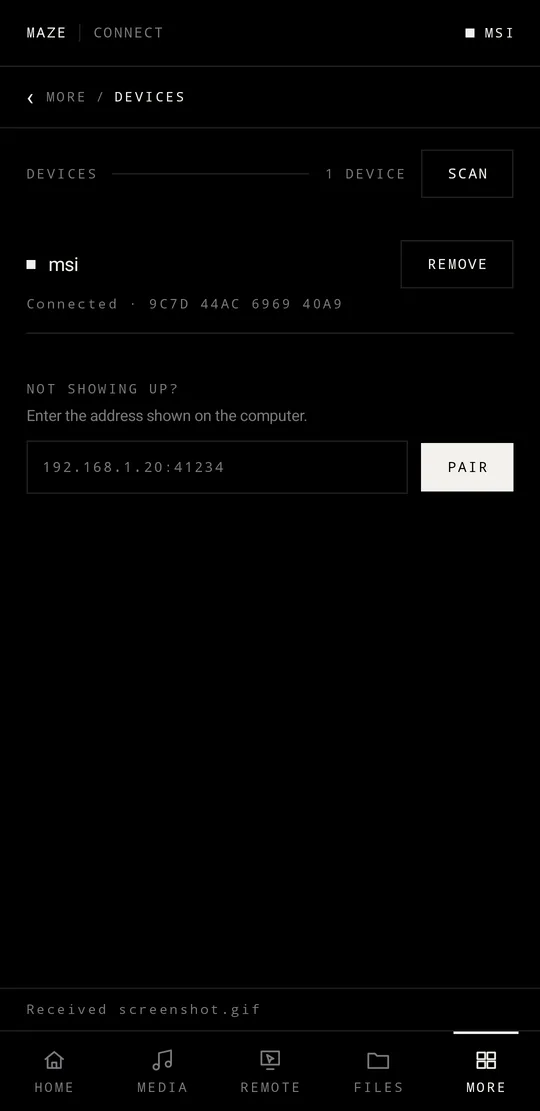
Multi-Computer Support
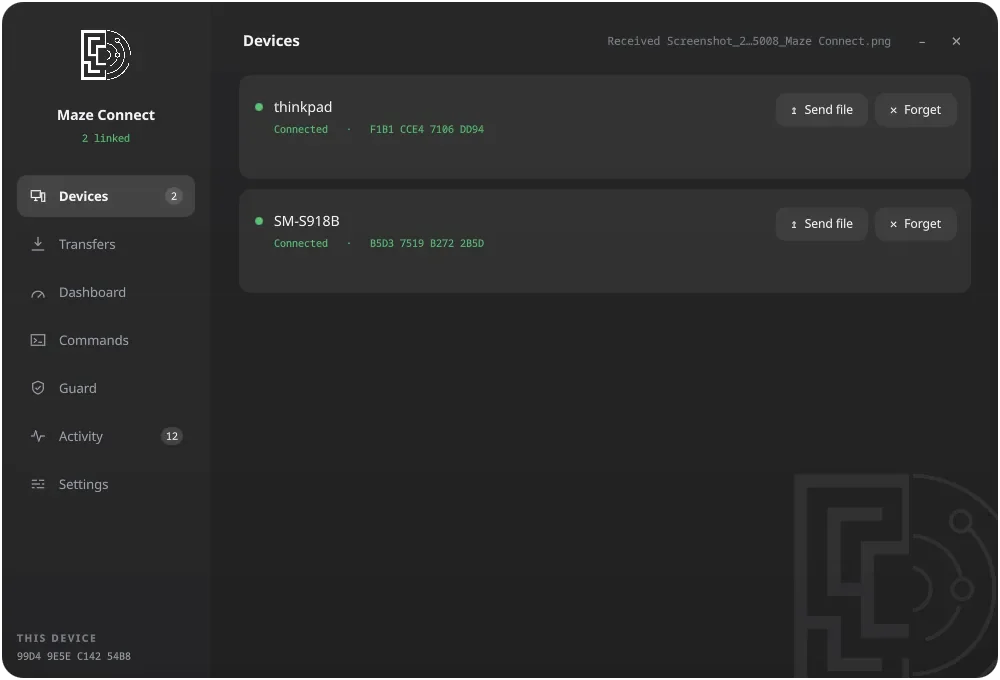
The phone can be paired with and connected to multiple desktops at once, with instant switching between them. Each home-screen widget independently chooses which paired computer it displays.
Installation
Desktop: already installed — maze-connect is part of maze-meta, so it
ships with every Maze install. Launch it from the application menu.
Firewall: the installer opens TCP and UDP port 38271 for Maze Connect. Pairing happens directly between phone and desktop on your local network — nothing is routed through a third-party server.
Android: install the Maze Connect APK. Download the APK.
Permissions (Android)
Maze Connect requests the following permissions depending on which features you use:
| Permission | Used for |
|---|---|
| Network access | Communicating with the paired desktop |
| Notifications | "Open on phone" and connection status |
| Storage / media access | File transfer |
| Share target | Android share-menu integration |
No permission is required unless the corresponding feature is used.