First Boot: Approve the Security Key
This step happens once, and it cannot be skipped.
On the first reboot after installation, a blue screen appears saying "Verification failed" or "MOK Management".
This is not an error, and nothing is broken. Do not turn Secure Boot off to make it go away.
Why it appears
Maze generates a signing key that is unique to your machine — its private half never leaves the computer. Your firmware has not seen that key before, so it asks you to approve it once, in person.
There is no password. Being physically at the machine is the authorisation.
What to do
In short: Enroll key from disk → EFI volume → MOK.cer → Continue → Yes →
Reboot. Step through the screenshots below to see each screen (use the arrow
keys, swipe, or click an image to enlarge it).
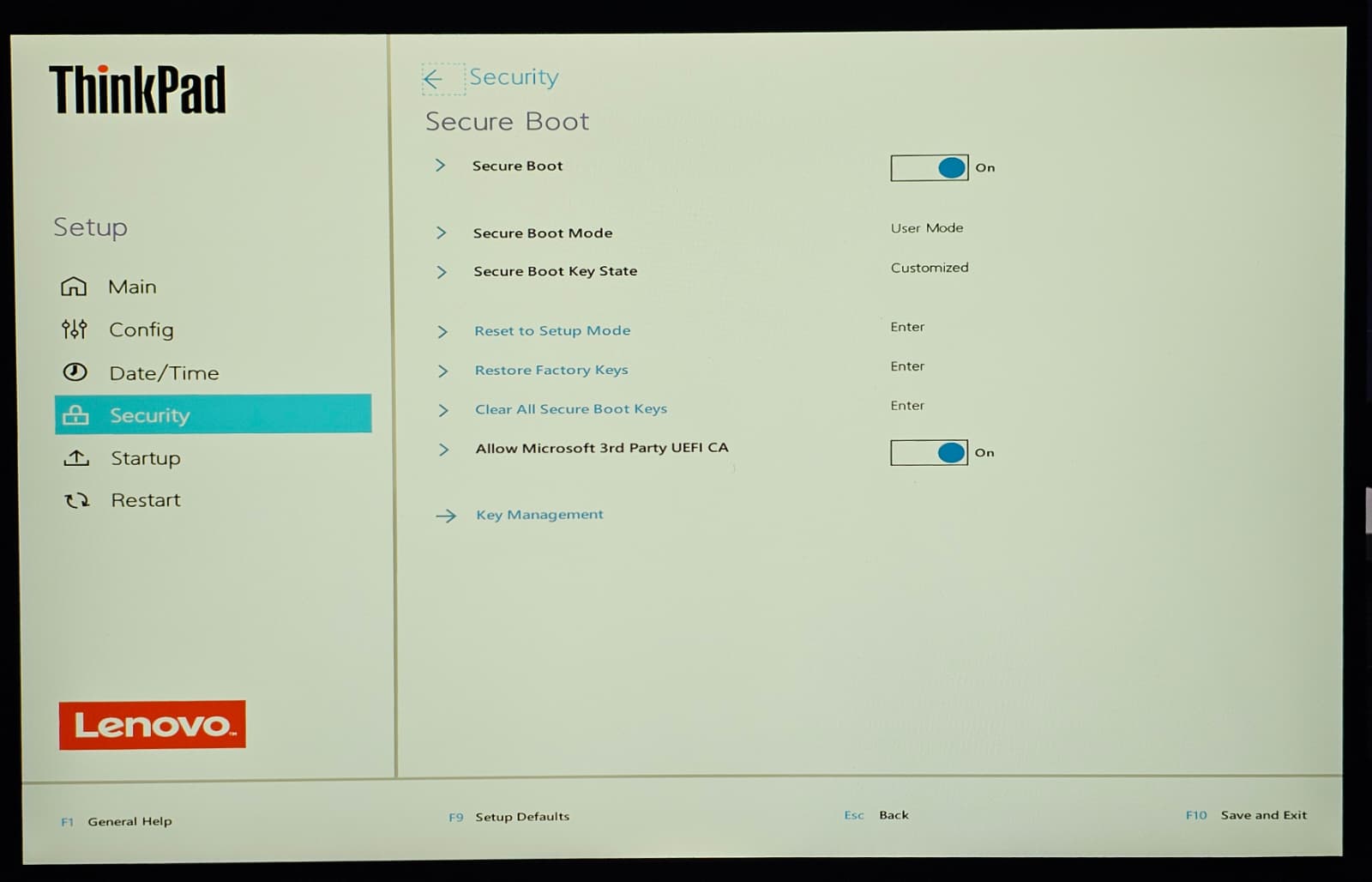
- Leave Secure Boot on in your firmware — Secure Boot On, mode User Mode. On Lenovo and other Secured-core laptops also make sure Allow Microsoft 3rd Party UEFI CA is On — the shim is signed with that key. Do not reset to Setup Mode or clear the keys.
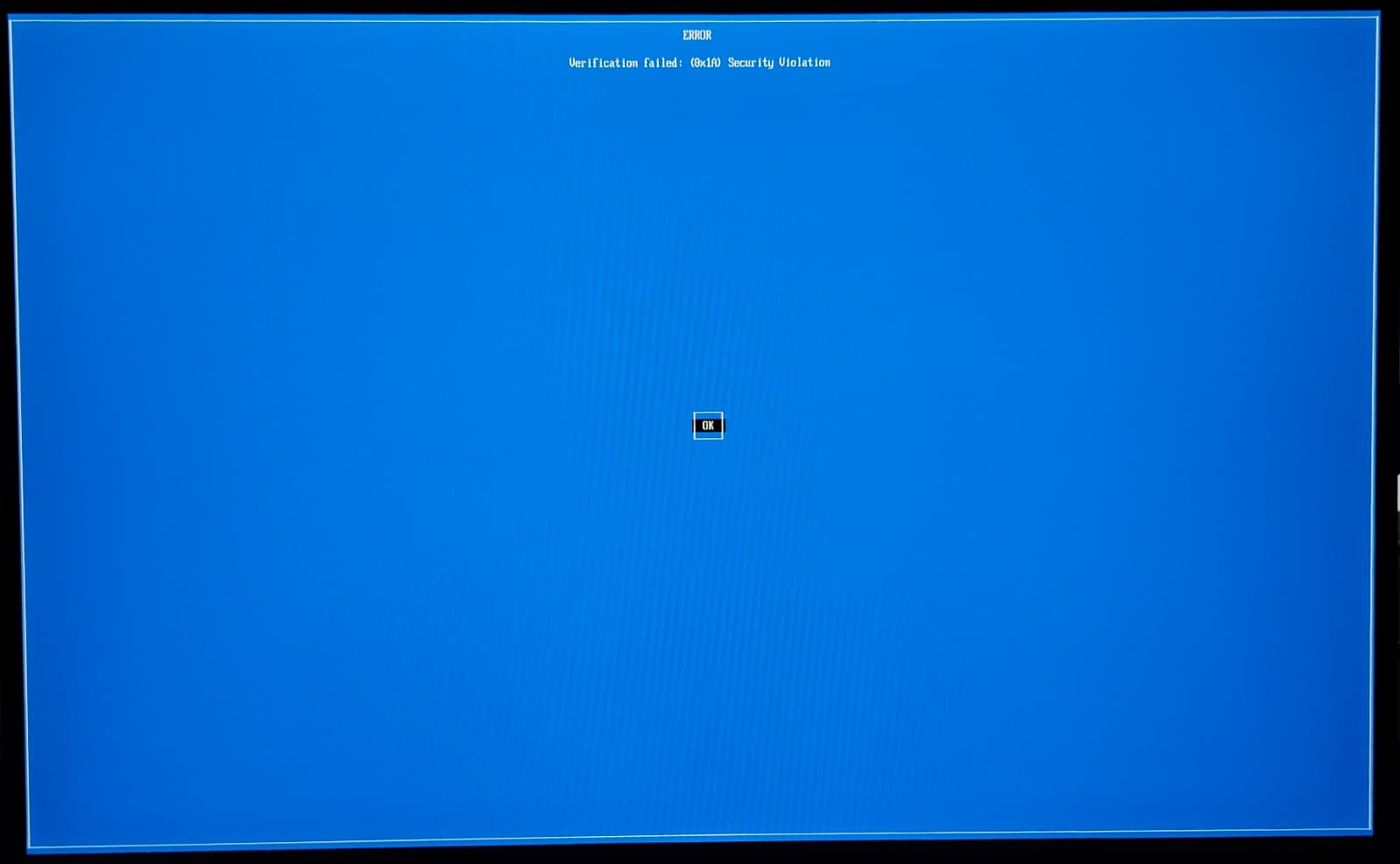
- "Verification failed: (0x1A) Security Violation" — Expected on the very first boot — the firmware does not know Maze's key yet. Nothing is broken. Press Enter on OK.
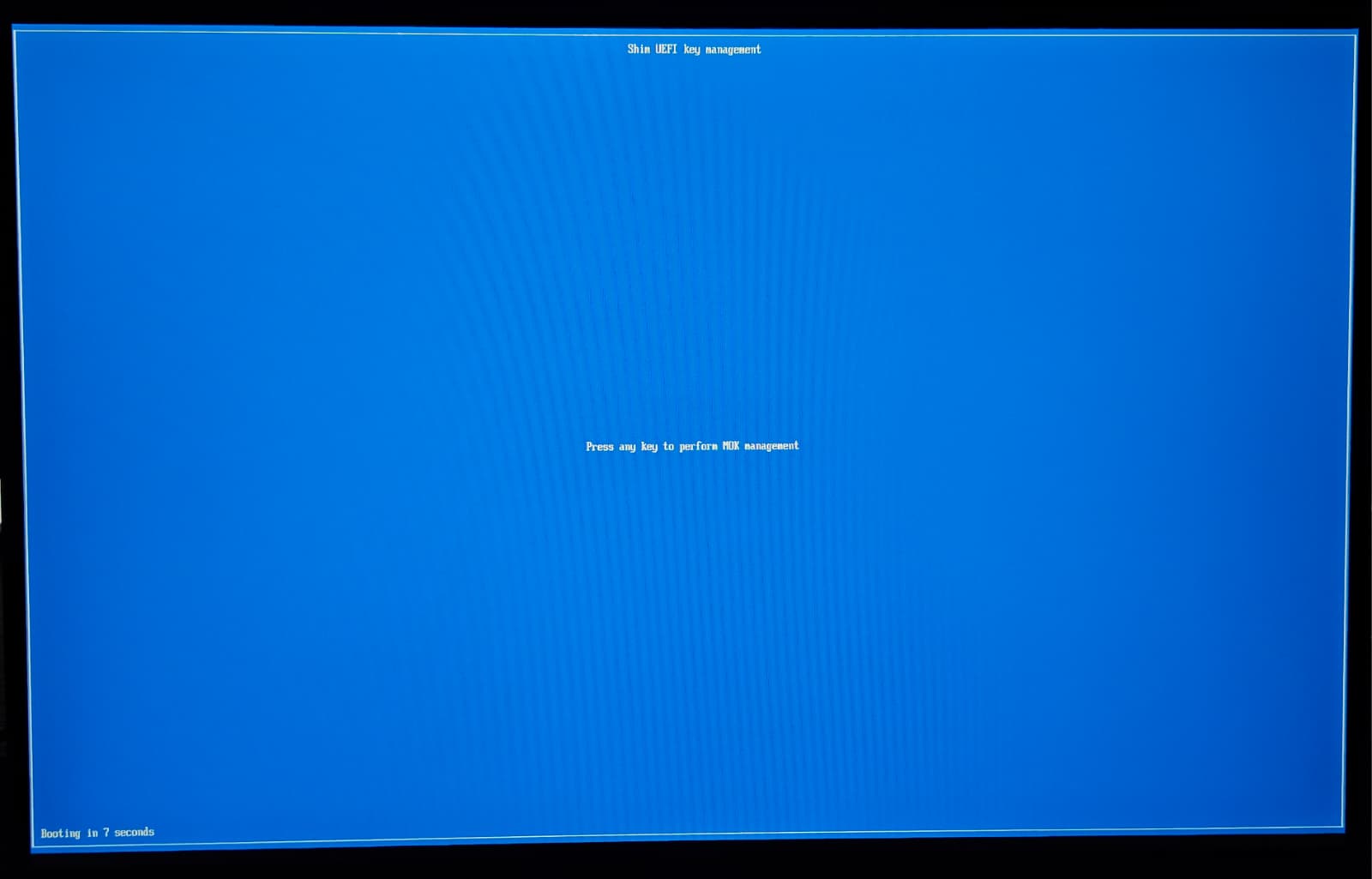
- Press any key — quickly — "Press any key to perform MOK management" counts down for about 10 seconds. Press a key before it runs out. If you miss it, just reboot and it comes back.
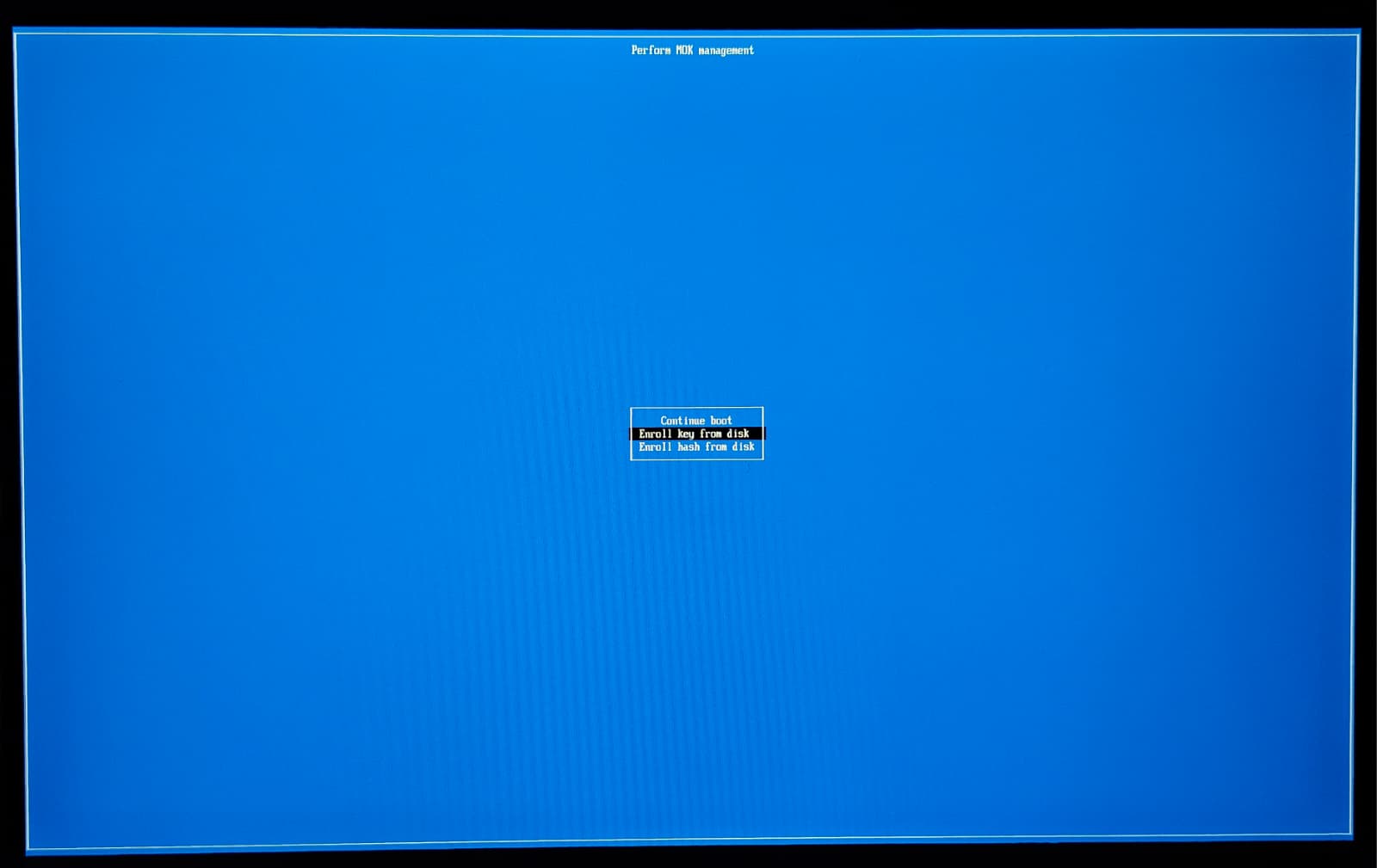
- Choose "Enroll key from disk" — Use the arrow keys and Enter. Not "Continue boot", not "Enroll hash from disk".
- Select the EFI volume — Pick the small EFI system partition — on the live USB it is labelled MAZE_EFI.
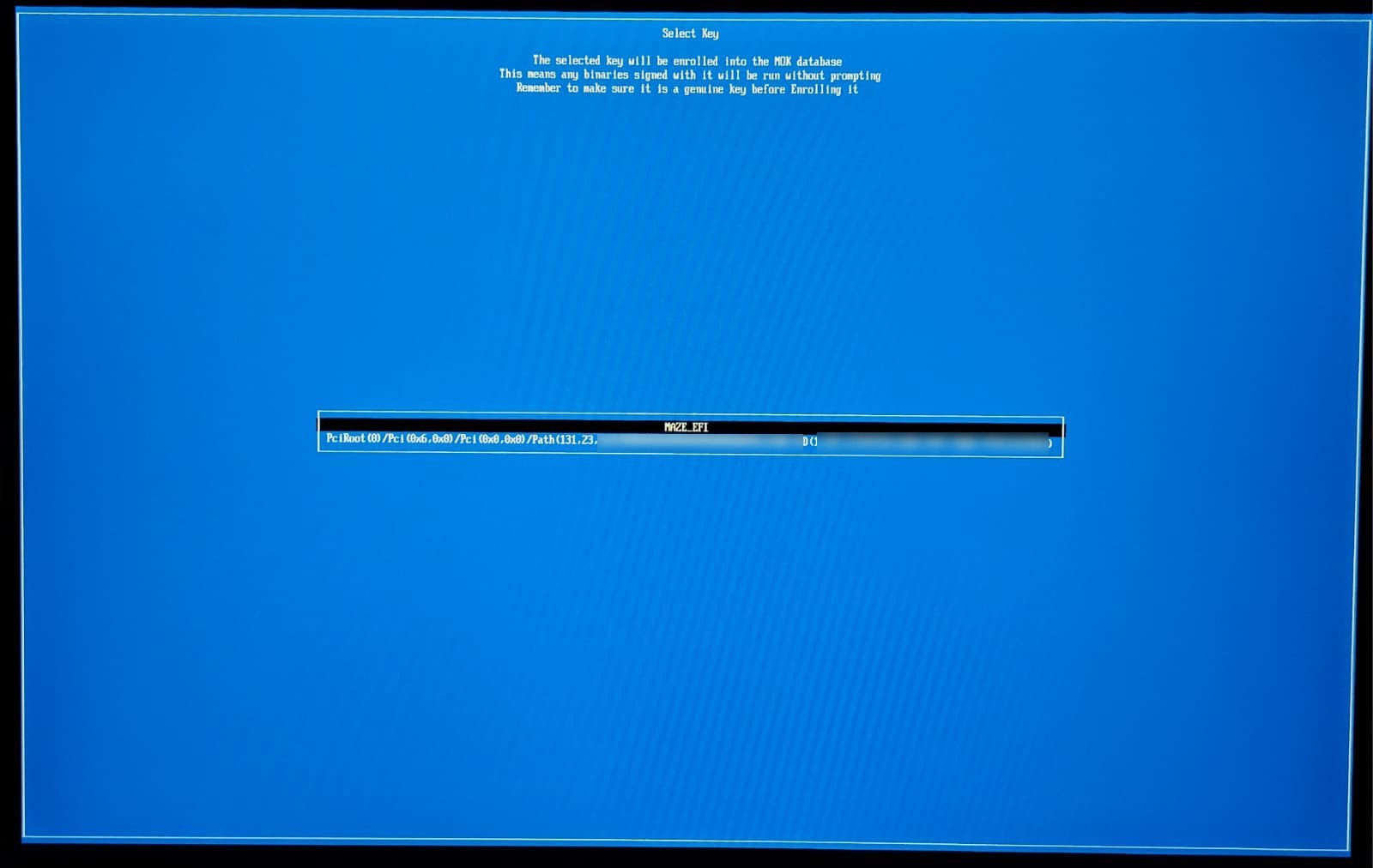
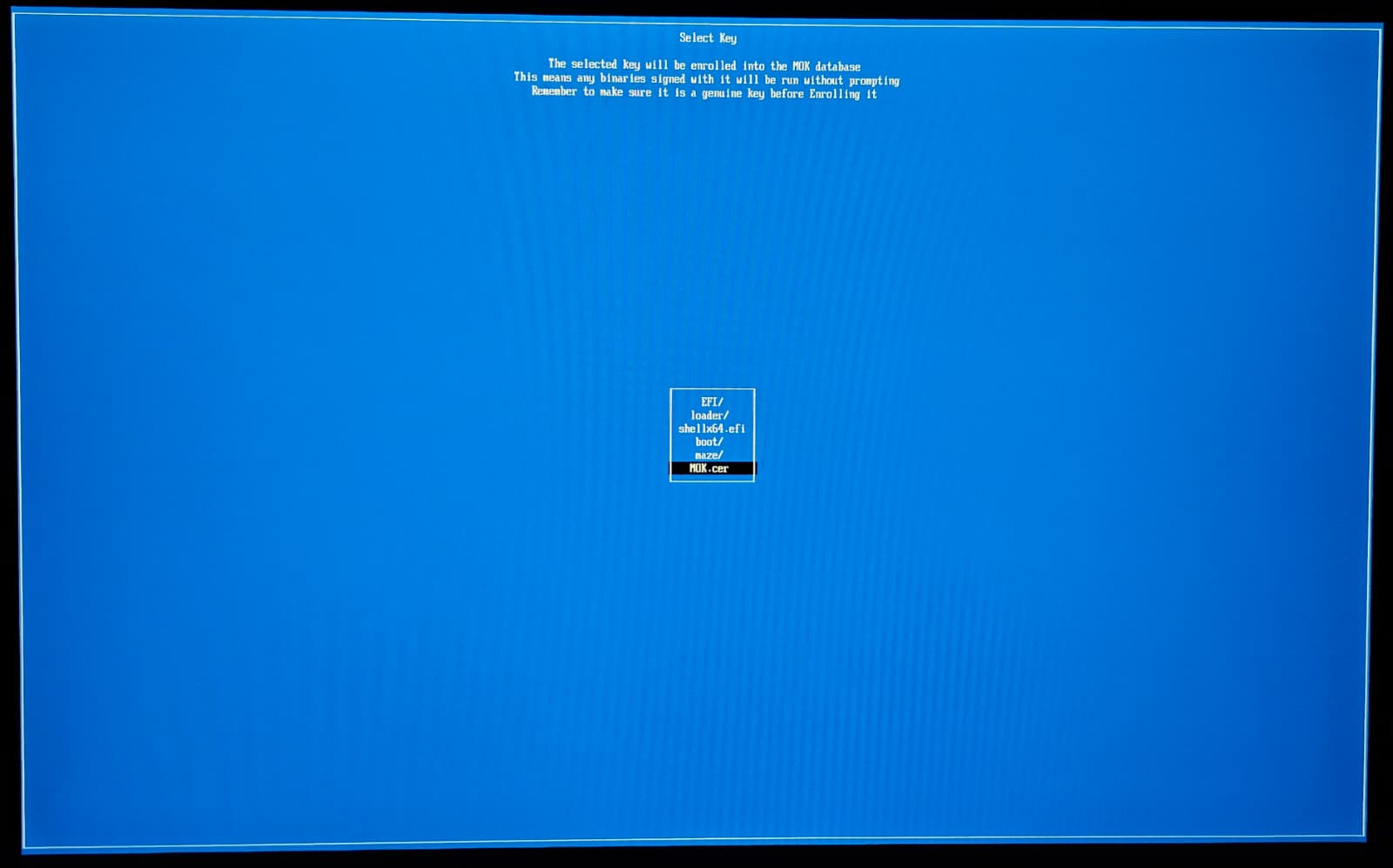
- Select MOK.cer — The file MOK.cer sits at the root of that volume, below the folders.
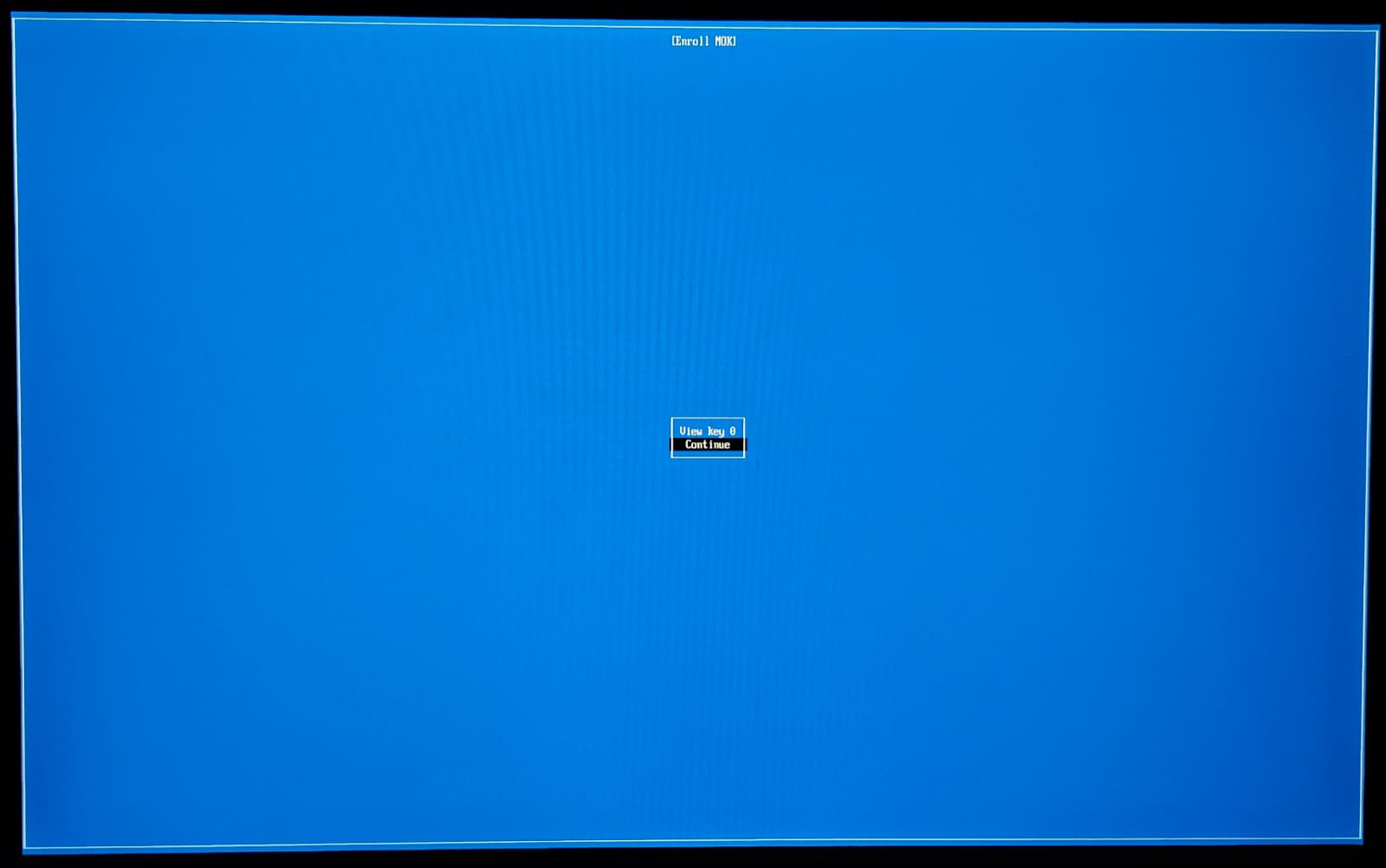
- Choose "Continue" — "View key 0" only shows the certificate details — you can skip it.
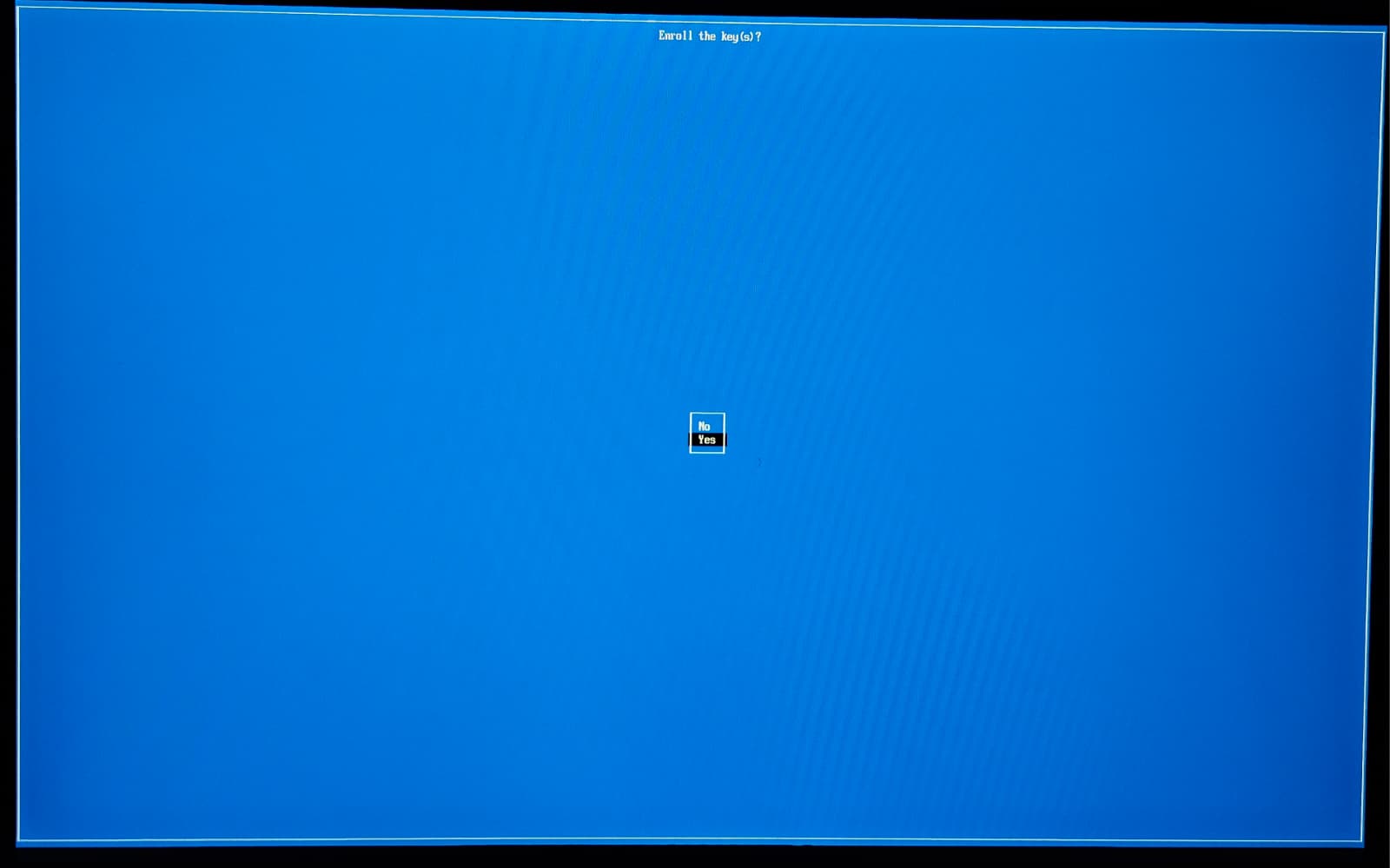
- "Enroll the key(s)?" → Yes — Select Yes. No password is asked — being at the machine is the approval.
- Choose "Reboot" — Done. From now on the system boots normally with Secure Boot active, and you never repeat this.
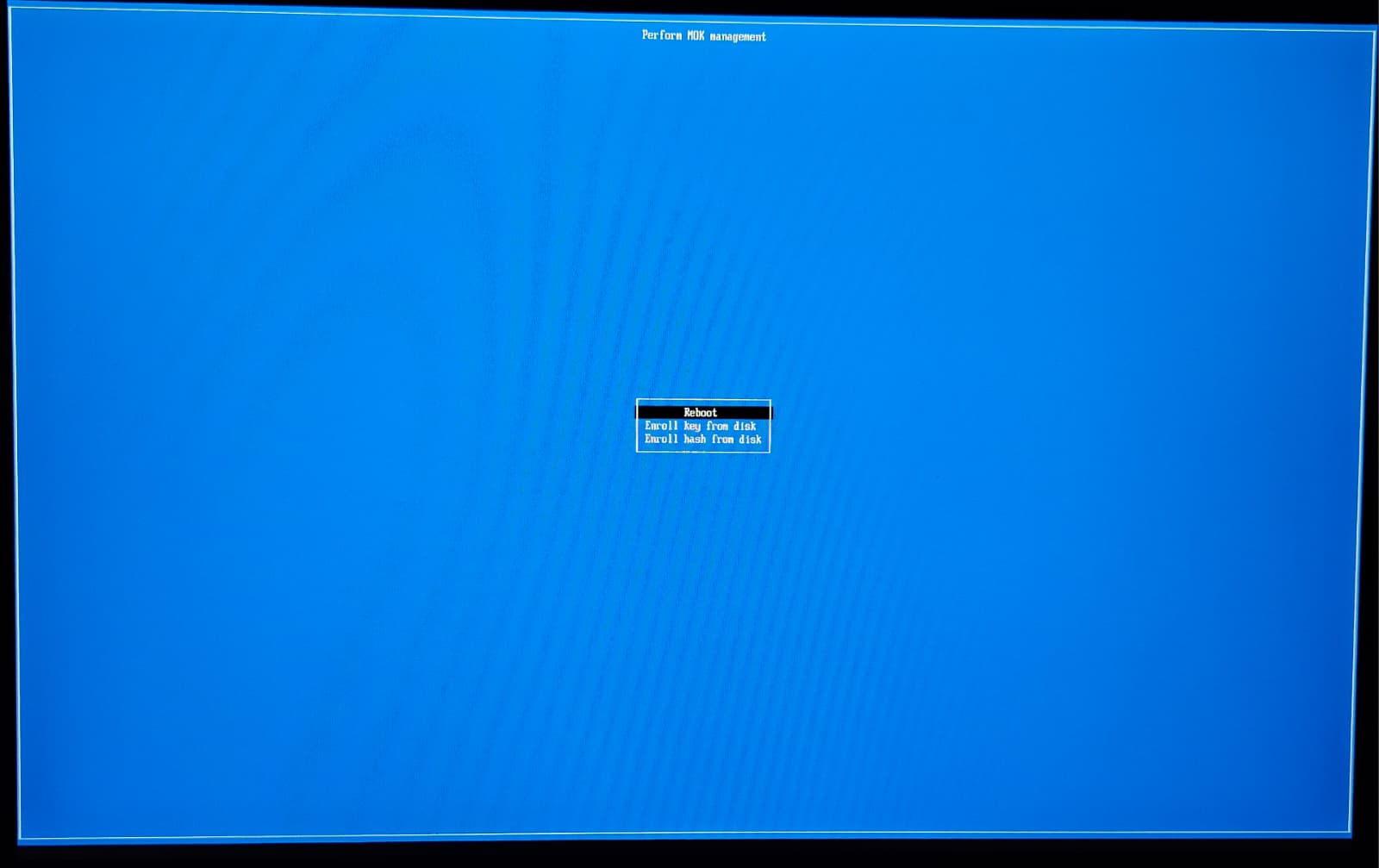
Same screens on the live USB. If you boot the Maze ISO with Secure Boot on, you see this exact sequence once before installing — follow the same steps. After installation it appears one more time for your machine's own key.
After this the system boots normally, every time. Factory and Windows keys are untouched, and kernel updates are re-signed automatically — you never repeat this step.
A copy of these instructions is also written to the installed system at
/var/lib/maze-secureboot/ENROLLMENT.txt.
Verifying it worked
mokutil --sb-state          # should say "SecureBoot enabled"
sudo maze-boot-check        # checks the whole chain
If you missed the screen, or chose the wrong option
No harm done — the machine still boots, it just runs with Secure Boot inactive. To get the prompt back:
sudo mokutil --import /var/lib/maze-secureboot/MOK.cer
sudo reboot
The blue screen will appear again on the next boot. Follow the four steps above.
See also: Secure Boot — the full technical reference · After Install