Running Maze Linux in a Virtual Machine
Maze Linux ships as a bootable live ISO — you can run it in a virtual machine without installing anything. The live environment is the full system: all security services, Ollama, the Maze desktop, and every pre-installed app are active. Nothing is stripped down.
Turn on UEFI in the VM — otherwise it will not boot. Maze is UEFI-only; most hypervisors default to legacy BIOS, and the ISO simply won't start there (black screen or "no bootable medium"). Leave Secure Boot off in the VM — plain UEFI is all it needs. Each section below shows where the switch is.
Note: Some security features behave differently in a VM. AppArmor and firewalld run normally, but MAC randomization applies to the virtual NIC (not your physical adapter).
Requirements
| Minimum | Recommended | |
|---|---|---|
| RAM | 4 GB allocated to VM | 8 GB+ (needed if you want to run Ollama) |
| CPU | 2 cores, 64-bit | 4+ cores with hardware virtualization |
| Disk | None (live mode) | — |
| Host OS | Linux, Windows, macOS | — |
Maze ships with zram compressed swap, which helps when RAM is tight — but local AI models (llama3, etc.) need headroom. If you plan to use Ollama inside the VM, allocate at least 8 GB.
QEMU / KVM (Linux — Recommended)
QEMU with KVM gives near-native performance and is the best way to test Maze on Linux.
Install QEMU:
# Maze Linux / Arch
sudo pacman -S qemu-full edk2-ovmf

# Fedora
sudo dnf install qemu-kvm edk2-ovmf

# Debian / Ubuntu
sudo apt install qemu-system-x86 ovmf
edk2-ovmf / ovmf is the UEFI firmware for QEMU — without it QEMU boots
in legacy BIOS mode and the ISO will not start.
Boot the ISO:
qemu-system-x86_64 \
  -enable-kvm \
  -drive if=pflash,format=raw,readonly=on,file=/usr/share/edk2/x64/OVMF_CODE.4m.fd \
  -m 6G \
  -cpu host \
  -smp 4 \
  -cdrom mazelinux-*.iso \
  -boot d \
  -vga virtio \
  -display gtk
-drive if=pflash,…OVMF_CODE…— boots the VM in UEFI mode (required). The path differs per distro: Fedora/usr/share/edk2/ovmf/OVMF_CODE.fd, Debian/Ubuntu/usr/share/OVMF/OVMF_CODE_4M.fd-enable-kvm— hardware acceleration (Linux hosts only, requireskvmkernel modules loaded)-m 6G— 6 GB is a comfortable amount for the full desktop + security stack-cpu host— exposes your real CPU flags to the VM; improves compatibility with some Maze tools
Press Ctrl+Alt+G to release keyboard/mouse from the QEMU window.
VirtualBox
-
Download and install VirtualBox. On a Linux host, load VirtualBox's kernel modules — without them no VM starts ("Kernel driver not installed (rc=-1908)"):
sudo modprobe -a vboxdrv vboxnetflt vboxnetadpOn Arch-based hosts (including Maze) install the modules first:
sudo pacman -S virtualbox virtualbox-host-modules-arch(orvirtualbox-host-dkmsfor a non-default kernel). -
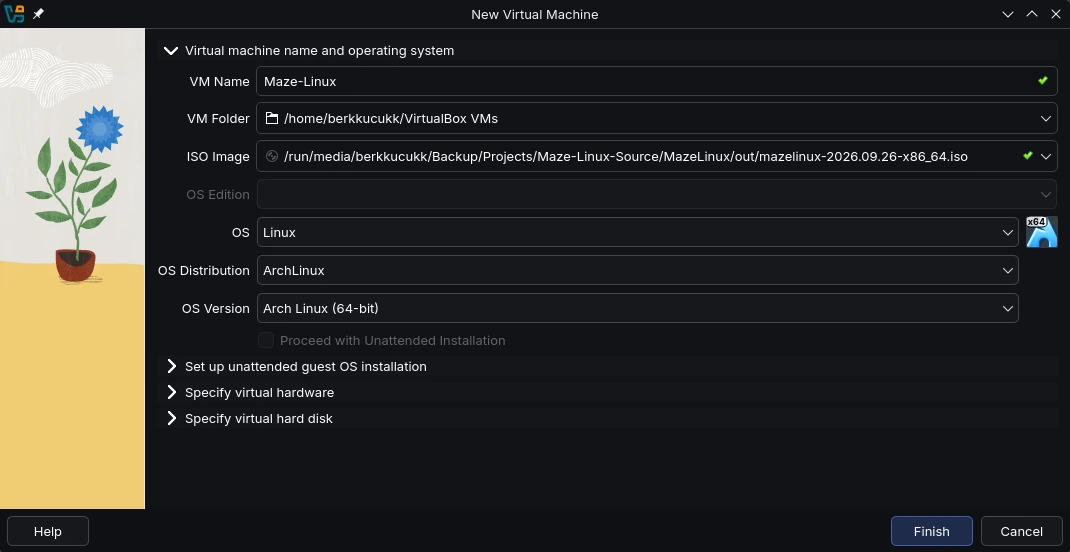
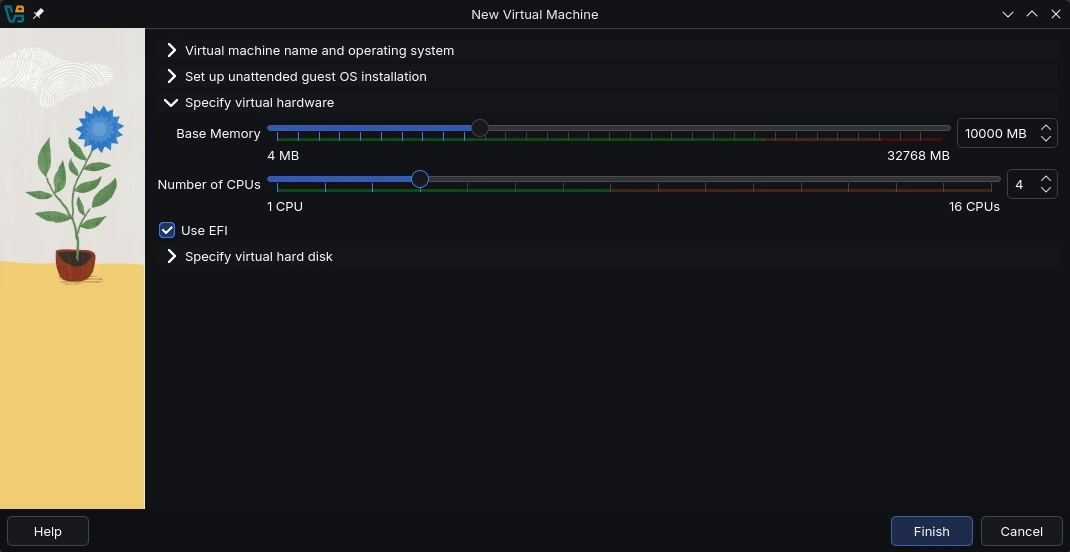
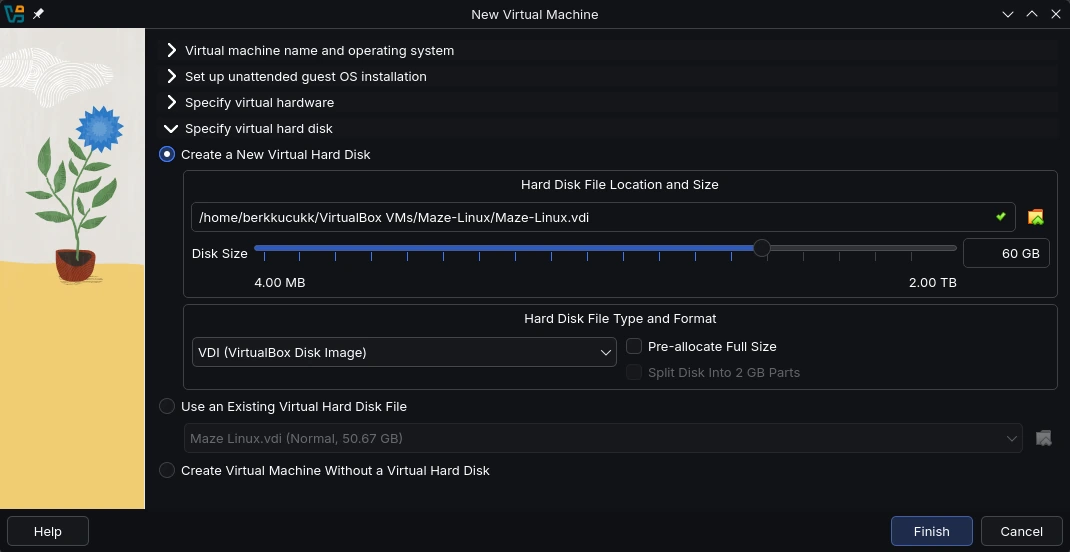
Click New. The wizard has collapsible sections — fill in the three shown below, then press Finish:
- Name and operating system — Give the VM a name and pick the Maze ISO Image right here — no need to attach it later. Set OS to Linux, OS Distribution to ArchLinux and OS Version to Arch Linux (64-bit). Leave "Proceed with Unattended Installation" unticked.
- Virtual hardware — tick "Use EFI" — Base Memory at least 4096 MB (8 GB+ if you want to run Ollama), 2+ CPUs (4 recommended). Tick "Use EFI" — this is required; without it the ISO does not boot.
- Virtual hard disk — Only to try the live system? Choose Create Virtual Machine Without a Virtual Hard Disk. To install Maze into the VM, create a new VDI disk of at least 40 GB (60 GB is comfortable). No need to pre-allocate.
- Optional: Settings → Display → set Video Memory to 128 MB and enable 3D Acceleration.
- Click Start. Forgot EFI? Turn it on later under Settings → System → Motherboard → Enable EFI.
VirtualBox uses software rendering unless Guest Additions are installed. The desktop will work, but may feel sluggish compared to QEMU/KVM. Wayland compositing effects may be reduced.
VMware Workstation / Fusion
- Create a new VM → Use ISO image → select the Maze Linux ISO.
- Guest OS: Linux → Other Linux 6.x kernel 64-bit.
- RAM: 4 GB minimum, 6–8 GB recommended.
- Click Finish, but don't start it yet: open VM Settings → Options → Advanced → Firmware type and choose UEFI (required — the ISO does not boot in BIOS mode).
- Start the VM.
What works in the live VM
| Feature | Works in VM? |
|---|---|
| KDE Plasma desktop | Yes |
| AppArmor / firewalld | Yes |
| ClamAV / QLAM | Yes |
| Entropy Shield (Tor + I2P) | Yes |
| MAC randomization | Yes (applies to virtual NIC) |
| Ollama / local AI | Yes — needs enough RAM allocated |
| GPU acceleration (Ollama) | No — VM GPU passthrough is not supported out of the box |
| Guided installer | Yes — you can install to a virtual disk from live mode |
Tips
- Screen resolution: If the display is small, open System Settings → Display & Monitor and set your preferred resolution.
- Clipboard sharing: In VirtualBox, enable Shared Clipboard under Settings → General → Advanced. In QEMU, use
-device virtio-serial -chardev spicevmchannelwith a SPICE display. - Secure Boot stays off in the VM. Boot in plain UEFI mode with Secure Boot disabled — you will not see the blue MOK key-enrollment screen. That step only applies to real hardware (see First Boot / MOK).
- Want to install? Once you're satisfied with the live session, click Install Maze Linux in the dock and follow the Installation Guide.